Flywheel Tutorial
Learn how to install Flywheel, connect MCP hosts, use the Web UI, and work with research graphs.
Welcome to Flywheel. Below we will cover how to install Flywheel and some tips on usage patterns.
What is Flywheel?
Flywheel's ambition is to serve as the infrastructure upon which autonomous science will run.
In its current iteration, you can think of Flywheel as "git for research", to aid researchers and agents in working on research projects.
While in SWE we use git to manage changes to code, in research we are interested in manipulating ideas. Flywheel provides the DAG structure and operations (branching, merging, etc) to manage this.
Setting up Flywheel
We are in the business of automating science. The canonical local Flywheel
install gives you the flywheel CLI and bundled agent skills. You can then
optionally wire Flywheel into compatible hosts through the
Model Context Protocol (MCP).
MCP enables compatible hosts to call Flywheel tools natively. We recommend using Flywheel with Codex or Claude code, but any compatible MCP host should work.
One-command setup (recommended)
Simply run:
curl -fsSL https://flywheel.paradigma.inc/install | shThis installs the flywheel CLI into the managed user prefix
${FLYWHEEL_INSTALL_PREFIX:-$HOME/.local}, configures PATH when needed, and
starts guided setup. In an interactive terminal, setup asks whether you want MCP
host setup or CLI-only setup. See Install modes below for the
CLI and MCP options.
On Windows, first choose the environment that launches your AI coding host. If you use Codex, Claude Code, Cursor, or another host from WSL, open that WSL distro, install npm and a supported Node.js version inside WSL, and run the Linux installer there. If your host runs as a native Windows process, use the native PowerShell recipe on the Install page.
To install directly into MCP mode instead, pass setup arguments through the installer:
curl -fsSL https://flywheel.paradigma.inc/install | sh -s -- --mode mcpIf you are on a remote shell (for example SSH into a server), use device auth:
curl -fsSL https://flywheel.paradigma.inc/install | sh -s -- \
  --mode mcp \
  --auth-mode device \
  --base-url https://flywheel.paradigma.inc
Use the public Flywheel origin (flywheel.paradigma.inc) for --base-url, not
backend Fly hostnames. Device auth prints an approval URL and setup code; if
browser auth does not open from WSL or a remote shell, copy both values into
the browser you use to approve setup.
Reinstall / cleanup
curl -fsSL https://flywheel.paradigma.inc/uninstall | sh
curl -fsSL https://flywheel.paradigma.inc/install | sh
The uninstall script removes Flywheel MCP entries, bundled skills, the managed-prefix CLI package and binary, and installer-managed PATH configuration. Runtime configuration and update-cache files are removed only when the install manifest records that Flywheel created them; pre-existing files are preserved. Local repositories and remote account data are not deleted. See Uninstall before reinstalling.
To reinstall into MCP mode after cleanup, pass --mode mcp through the install
script:
curl -fsSL https://flywheel.paradigma.inc/install | sh -s -- --mode mcpWeb connector hosts (ChatGPT.com / Claude.ai / etc. )
Web connector hosts can still use OAuth-style connector flows. Keep using those
host-native connector install UIs for ChatGPT.com custom apps, Claude.ai custom
connectors, etc. Simply put https://flywheel.paradigma.inc/mcp-server as the
URL when prompted.
Install modes
setup has two install modes. CLI mode is the canonical local install; MCP mode
is optional host wiring for agents that should call Flywheel tools natively.
CLI mode
npx --yes @paradigma-inc/flywheel setup --mode cli--mode cli installs the bundled Flywheel skills and configures runtime
credentials/config for the flywheel binary. No MCP host config is written.
Your agent then talks to Flywheel by shelling out to the flywheel binary;
the bundled skills route to the matching CLI command for each operation.
Prerequisite for bare flywheel <command> routing after CLI-mode setup: install
the binary through the curl installer or the managed-prefix npm recipe.
curl -fsSL https://flywheel.paradigma.inc/install | sh -s -- --mode cliPick this when you do not want to wire MCP into your host config, or when your agent prefers shelling out to a CLI over calling MCP tools.
MCP mode
npx --yes @paradigma-inc/flywheel setup --mode mcp--mode mcp wires Flywheel MCP into your host's config and installs the bundled
Flywheel skills. Your agent then talks to Flywheel through your MCP host,
calling flywheel_* MCP tools.
Pick this when your host (Codex, Claude Code, Cursor, OpenCode, Gemini CLI, Pi, Hermes Agent, OpenClaw) supports MCP and you want native MCP-tool integration.
Run flywheel commands directly
In either mode, you can also type flywheel commands yourself. For
occasional use:
npx --yes @paradigma-inc/flywheel <command>For regular use, install the binary so flywheel is on your PATH:
curl -fsSL https://flywheel.paradigma.inc/install | sh -s -- --mode cli
FLYWHEEL_BIN="${FLYWHEEL_INSTALL_PREFIX:-$HOME/.local}/bin/flywheel"
"$FLYWHEEL_BIN" help                 # list all commands
"$FLYWHEEL_BIN" help <command>       # per-command usage, examples, and JSON schema
"$FLYWHEEL_BIN" auth:status          # confirm the runtime is authenticated
"$FLYWHEEL_BIN" hosted:node:list --page 1  # read example
Open a new shell, or source the profile file named by the installer, before
using the bare flywheel command.
See the CLI reference for the full command catalog grouped by
capability area, the setup / uninstall flag matrix, and runtime config
resolution.
Local authoring and publication
Run these phases from a project directory where you want a new Flywheel
repository. Repository commands discover the nearest parent containing
.flywheel; --repo <root> selects a repository explicitly. A personal
repository is initialized with repo:init --personal and selected with
--personal, not automatically. See Install for configuration.
Stage and inspect pending state
#!/usr/bin/env bash
flywheel repo:init . --format=json
CREATED="$(flywheel repo:node:create --title "Documentation local example" --format=json)"
NODE_ID="$(printf '%s' "$CREATED" | jq -er '.node_id')"
flywheel repo:diff --staged --format=json
# Review complete net Before/After values before running commit.sh.
flywheel repo:node:get "$NODE_ID" --staged --format=json
The create saves a node locally, and the staged read inspects the resulting
pending graph before any commit. Unflagged projection reads remain
committed-only. Add --staged to exactly these existing readers when you need
pending state: repo:node:get, repo:artifact:get, repo:containment:get,
repo:edge:get, repo:tag:list, repo:lineage:list,
repo:node-artifact:list, repo:edge-artifact:list,
repo:containment:list, and repo:edge:list.
A staged result retains the reader's normal fields and adds view: "staged",
the exact staging_digest, and the real nullable committed base at_head.
Before the first local commit, at_head is null, and creation or update
provenance for a new or changed entity is null. A later commit assigns
provenance-bearing relationship-row provenance and digests, while graph values
and field or property digests retain the unchanged reviewed value. These reads
are local, offline, and non-mutating: they require neither credentials nor
network access, fetch no artifact bytes, and do not publish. If an unflagged
read reports a pending-only entity as unavailable, inspect the same entity with
--staged.
To stage a small semantic edge, create the graph container and both endpoints in this repository, derive their IDs from the create responses, establish containment first, then add the edge:
GRAPH="$(flywheel repo:node:create --title "Tutorial graph" --format=json)"
GRAPH_ID="$(printf '%s' "$GRAPH" | jq -er '.node_id')"
SOURCE="$(flywheel repo:node:create --title "Source concept" --format=json)"
SOURCE_ID="$(printf '%s' "$SOURCE" | jq -er '.node_id')"
TARGET="$(flywheel repo:node:create --title "Target concept" --format=json)"
TARGET_ID="$(printf '%s' "$TARGET" | jq -er '.node_id')"
flywheel repo:containment:assign "$GRAPH_ID" "$SOURCE_ID" --format=json
flywheel repo:containment:assign "$GRAPH_ID" "$TARGET_ID" --format=json
flywheel repo:edge:add "$GRAPH_ID" "$SOURCE_ID" "$TARGET_ID" --format=json
The graph container, source, and target must belong to the same repository;
the distinct endpoints must be descendants of the graph container. The
containment assignments above are therefore required before repo:edge:add.
For any of the six list readers above, a staged first page and continuation use
the returned opaque next_cursor; no --at_head is required:
TAGS="$(flywheel repo:tag:list "$GRAPH_ID" --staged --format=json)"
NEXT_CURSOR="$(printf '%s' "$TAGS" | jq -r '.next_cursor // empty')"
if [ -n "$NEXT_CURSOR" ]; then
  flywheel repo:tag:list "$GRAPH_ID" --staged --after "$NEXT_CURSOR" --format=json
fi
Staged pages contain at most 256 results. Their cursor binds the repository,
reader and query, nullable committed base, and staging digest; if any of those
change, the cursor is stale and you must restart at the first staged page. An
optional staged --at_head is only a current-base consistency check, not a
pending-state selector.
Commit
#!/usr/bin/env bash
flywheel repo:commit --message "Create documentation node" --format=json
The staging area is now empty. The returned commit records the unchanged
reviewed batch in local history, and repo:node:get <NODE_ID> can read the node
in a new process before any publication; use the node_id returned during
staging. Its at_head is a current committed-head consistency guard: a stale or
mismatched head rejects, and it does not select historical state. For a paged
committed collection, reuse that exact at_head with the response's
next_cursor; unflagged --after requires that explicit --at_head.
GRAPH_READ="$(flywheel repo:node:get "$GRAPH_ID" --format=json)"
HEAD="$(printf '%s' "$GRAPH_READ" | jq -er '.at_head')"
EDGES="$(flywheel repo:edge:list "$GRAPH_ID" --at_head "$HEAD" --format=json)"
NEXT_CURSOR="$(printf '%s' "$EDGES" | jq -r '.next_cursor // empty')"
if [ -n "$NEXT_CURSOR" ]; then
  flywheel repo:edge:list "$GRAPH_ID" --at_head "$HEAD" --after "$NEXT_CURSOR" --format=json
fi
Publish
#!/usr/bin/env bash
flywheel repo:push --create-remote --format=json
Only this explicit push publishes local history. A local commit records the
unchanged reviewed batch but does not push; later pushes reuse the hosted
association, and repo:pull brings hosted history into the local repository.
Direct hosted API edit
After publishing the local example above, this request changes its title directly in the hosted repository. It does not require a local staging area or local commit, and it is not the MCP stage-lease workflow described in MCP Tools.
Read the current head with
GET https://flywheel.paradigma.inc/api/v1/repositories/{repository_id}/head.
In the JSON below, replace only these whole-string documentation placeholders:
${REPOSITORY_ID}: the repository ID returned by initialization.${NODE_ID}: the node ID returned by the local create command.${HOSTED_HEAD}: the current hosted head from the read above.${COMMIT_REQUEST_ID}: a fresh UUIDv4 identifying this commit request.${OPERATION_ID}: a separate fresh UUIDv4 identifying this operation.
Keep the request ID for retries of the same request. The literal digests are
SHA-256 values of canonical JSON for the old and new title strings. They apply
to this example's exact titles; arbitrary title edits require corresponding
digests. The old title is Documentation local example.
{
  "wire_version": 2,
  "commit_request_id": "${COMMIT_REQUEST_ID}",
  "expected_head": "${HOSTED_HEAD}",
  "operations": [
    {
      "type": "node.field.set.v1",
      "operation_id": "${OPERATION_ID}",
      "repository_id": "${REPOSITORY_ID}",
      "node_id": "${NODE_ID}",
      "field": "title",
      "expected_digest": "sha256:f281d95fb52fa44b44ffe7e974c36319fca53036c1e37b00189b5d08ae037c45",
      "new_digest": "sha256:cc1b1eddd1dcad7abc5ca54db8a33c8dbd30a902e4f7bf520d2219d0461eb911",
      "change_metadata": {
        "intent": "docs-example"
      }
    }
  ],
  "latest_values": [
    {
      "owner_type": "node",
      "owner_id": "${NODE_ID}",
      "field": "title",
      "value": "Documentation hosted example",
      "value_digest": "sha256:cc1b1eddd1dcad7abc5ca54db8a33c8dbd30a902e4f7bf520d2219d0461eb911"
    }
  ],
  "message": "Update title through the hosted API"
}
Send the substituted JSON body to
POST https://flywheel.paradigma.inc/api/v1/repositories/{repository_id}/commits, with Content-Type: application/json,
your normal bearer authorization, and Idempotency-Key equal to
${COMMIT_REQUEST_ID}. A successful response has HTTP 200 and the accepted
commit/head. Read the hosted head and flywheel hosted:node:get <NODE_ID> to
confirm the new title is Documentation hosted example. Omitting the required
wire_version fails with HTTP 422 and leaves the hosted head and title unchanged.
Pull the hosted history before continuing local edits.
What to do with Flywheel?
Use nodes to record questions, hypotheses, experiments, and conclusions.
Write the reasoning in Markdown content and keep the current interpretation in
the summary. Tags can classify research state; there is no required kind or
outcome body field.
Branches and merges preserve the relationships between alternatives. Artifacts hold evidence, executions record runs, and hooks automate supported events. See Encoding the Scientific Method for a research-writing template.
Francesco is documenting some example workflows on his X profile, like organizing, exploring and iterating on a research topic or reproducing papers on a budget.
We'll be sharing more example workflows there and also through our Discord, where we do weekly office hours. You should join!
The Flywheel Web UI
While most of your write-driven interactions with Flywheel will likely be through your MCP host, you will find the Flywheel Web UI useful for visualizing your graph and managing nodes, settings, and account workflows.
The Flywheel Web UI presents itself as a "Canvas" where the directed acyclic graph of nodes is visualized. Initially this graph will be empty, but gets populated as you create nodes through your MCP host. With the top right visibility dropdown, you can also view graphs that have been shared with you or have been made public. You can drag the nodes around to organize them, hover over them to preview their content and click on them for more details. You can pan and zoom around the canvas.
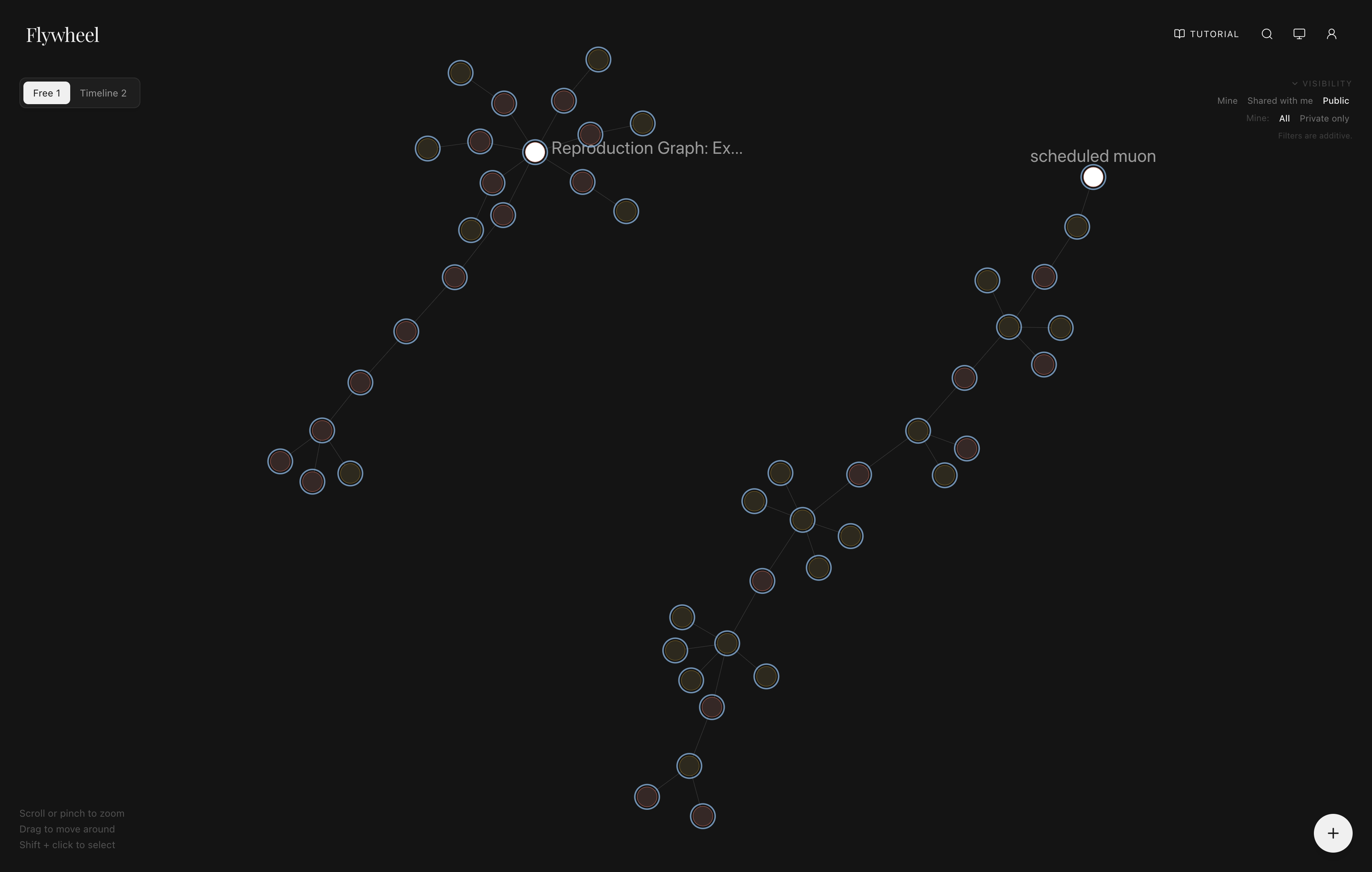
You can also toggle timeline view for a more organized, linear view of the graphs:
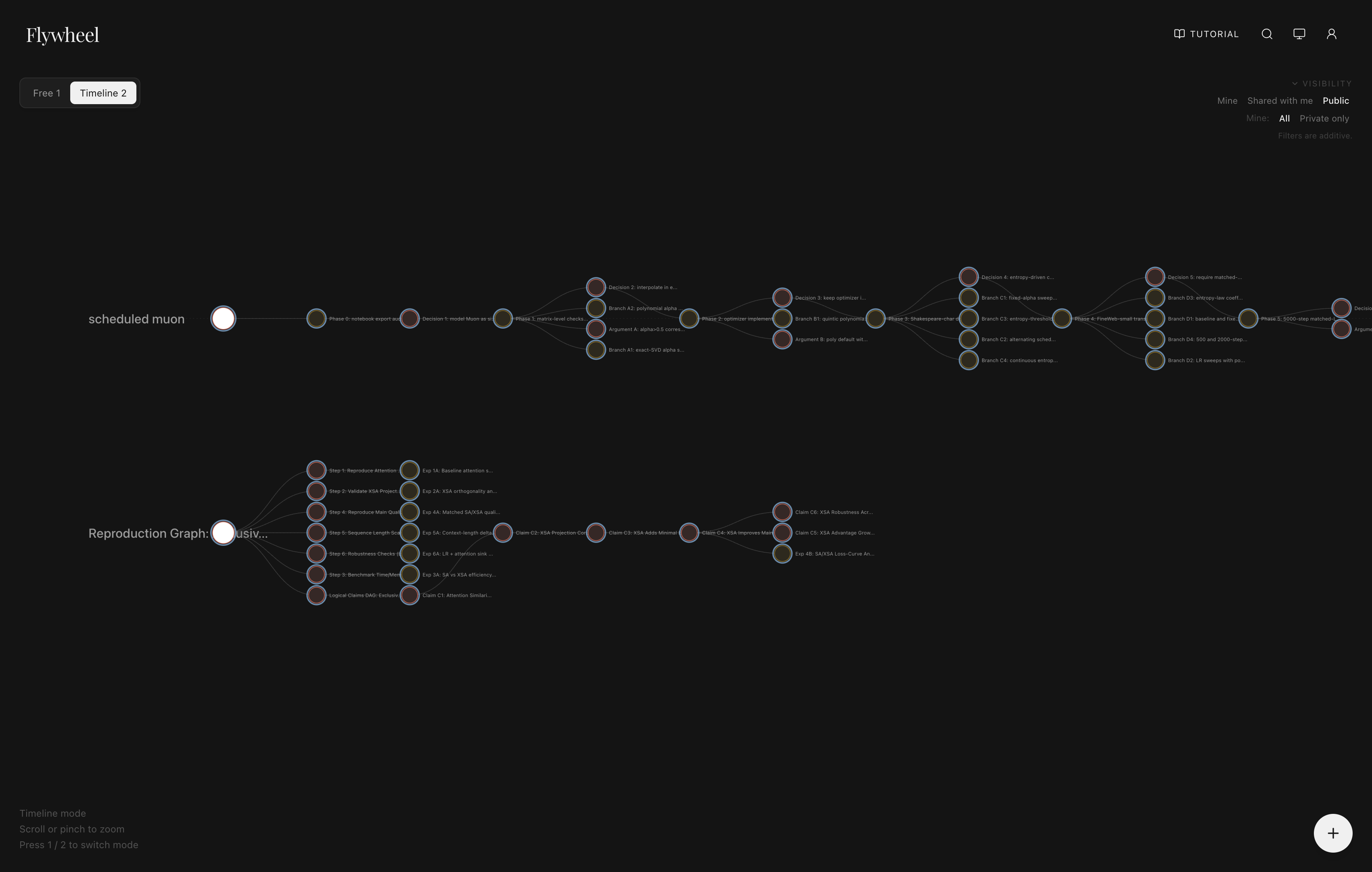
You can also shift select some nodes and generate summaries of their content and or export them as PDFs and/or JSON files for others to import. Of course, you can also use your MCP host to generate summaries and overviews of your research graph.
Inside a node, you will be able to see its content, summary, tags, and attached artifacts.
Hooks (Automations on Events)
Flywheel Hooks let you automate actions when node events happen. For the full workflow guide, see Hooks And Automations.
- An event is a durable "something happened" record. Supported events are
artifact.finalizedafter artifact finalize writes succeed andnode.publishedafter an eligible submission node becomes public. - A hook is a durable rule on a node that says: when event X happens in scope Y, perform action Z.
- A run is one execution record for one hook reacting to one event.
You can configure hooks in two ways:
- In the Web UI, open a node and use the Hooks panel in the right-side node panel area.
- In MCP, use the hook tools directly:
flywheel_create_hook,flywheel_update_hook,flywheel_set_hook_enabled,flywheel_delete_hook,flywheel_list_hooksflywheel_create_hook_secret,flywheel_update_hook_secret,flywheel_delete_hook_secret,flywheel_list_hook_secretsflywheel_list_hook_runs
Recommended setup flow:
- Create hook secrets (if your endpoint needs auth).
- Create a hook whose
workflow_yaml.ondeclares one or more supported events, a scope (self,subtree, orgraph), and a workflow that defines your action steps. - Set
workflow_yaml.ifto target the event shape you care about. - Enable the hook.
- Finalize an artifact upload and inspect run history with
flywheel_list_hook_runs.
workflow_yaml.if supports deterministic operators:
all,any,not,event,any_artifact- predicate operators:
eq,in,exists
Example: trigger when at least one public attempt submission artifact is finalized or when an eligible existing submission artifact becomes public with the node:
on:
  artifact.finalized: {}
  node.published: {}
if:
  all:
    - any:
        - event:
            field: event_type
            eq: artifact.finalized
        - event:
            field: event_type
            eq: node.published
    - any_artifact:
        field: metadata.campaign_role
        eq: submission
jobs:
  main:
    steps:
      - id: notify
        uses: flywheel/http_request@v1
        with:
          url: https://example.invalid/flywheel-hooks/artifact-finalized
"None artifact matches" is expressed with not: { any_artifact: ... }, for
example:
if:
  not:
    any_artifact:
      field: metadata.campaign_role
      eq: submission
Run cardinality is fixed: workflow-if evaluation yields one boolean per hook/event
and enqueues at most one run per (hook_id, event_id) (no artifact fanout).
Campaign submission artifacts follow the campaign's submission visibility
policy. Current public-policy campaigns require the attempt node to be public
before finalizing an artifact with metadata.campaign_role = "submission".
Invalid non-public submissions fail during artifact finalization before
submission hooks run.
Workflow steps currently support:
flywheel/http_request@v1flywheel/http_poll@v1flywheel/json_extract@v1flywheel/load_artifact@v1flywheel/upsert_artifact@v1flywheel/add_node_tags@v1
flywheel/upsert_artifact@v1 uses with.match to select the artifact to update.
Use match.metadata for subset matching and keep selectors unique; ambiguous
selectors fail terminally. Campaign workflows should keep contestant-authored
submission artifacts (campaign_role=submission) on the attempt node, then
write root-owned evaluation artifacts (campaign_role=evaluation) onto the
campaign root.
flywheel/add_node_tags@v1 adds ordinary root graph tags to a target node while
preserving existing tag assignments. It rejects one-only tags in v1.
Managed Compute
Flywheel can provision managed GPU instances for you from providers like Lambda Labs, Modal, Vast.ai, Prime Intellect, Nebius, and RunPod — directly from your agent conversation. You don't need to leave your workflow to spin up machines.
How it works
-
Ask your agent for compute. When you need a GPU for an experiment, just say so:
$ codex "I need a GPU to train a small transformer on this dataset" I'll provision a GPU for this node. First, I need you to approve a budget. Opening the approval page now... -
Approve a budget. Flywheel opens an approval page in your browser where you set a spending cap for managed compute acquisition.
-
The agent handles the rest. It acquires a machine, waits for it to become ready, and gets SSH access automatically. Provisioning typically takes a few minutes — the agent polls for readiness in the background.
-
Release when done. When you're finished, the agent releases the lease. You can also release leases from the Web UI at any time.
Managing machines in the Web UI
In Settings > Machines, you can see all GPU leases across your account — including the provider, state, hourly rate, total spend, and the acquire context that originally launched each lease. You can release individual leases or all at once.
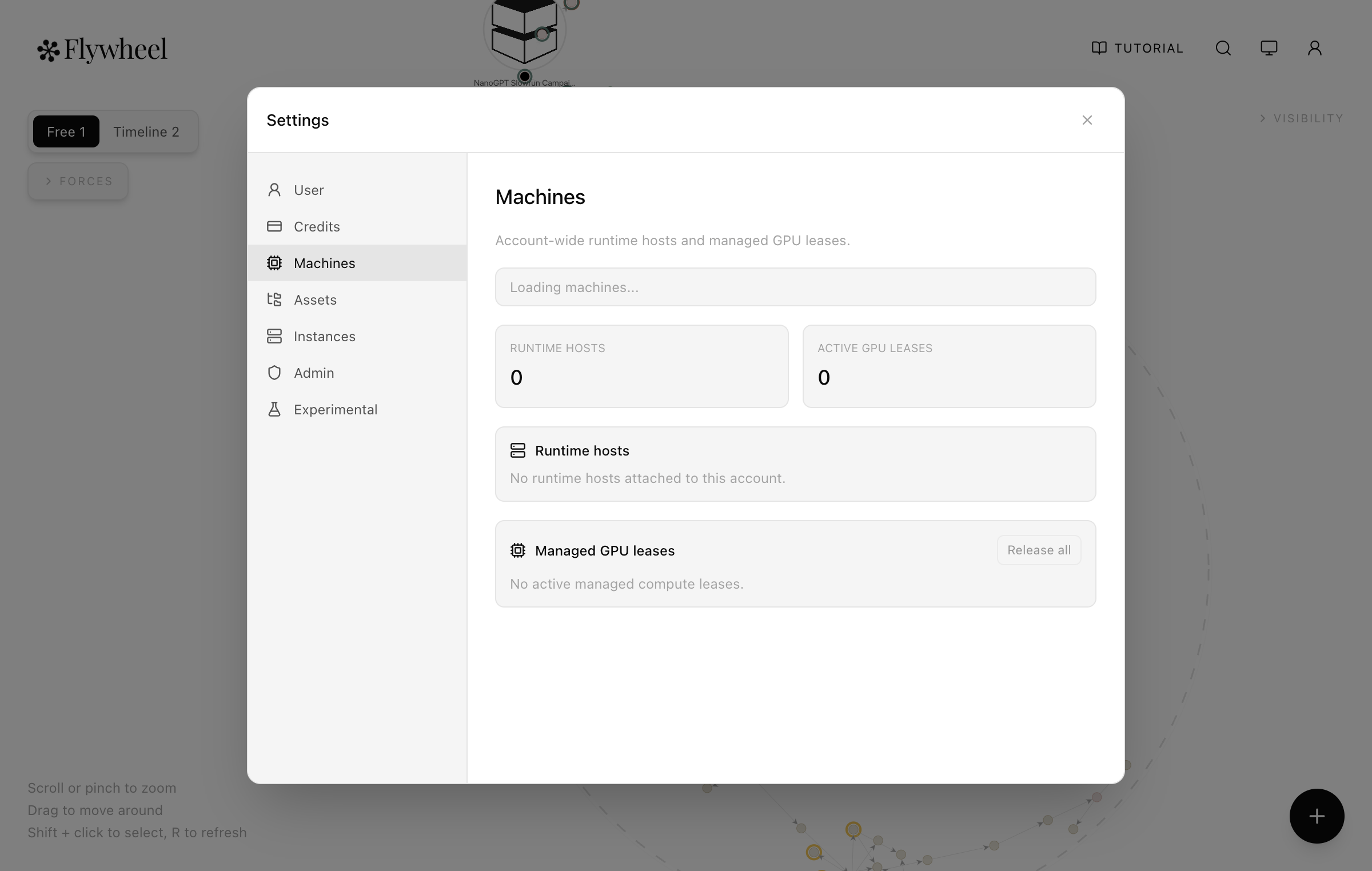
Inside a node, the node view focuses on compute policy and budget tracking (spent vs. hard cap). Active machines themselves are managed from the account level Settings > Machines view.
Credits and billing
Compute is billed against your Flywheel credits balance, which is separate from your subscription.
- The Pro subscription ($20/month or $204/year) includes $10 in non-rollover credits each Pro cycle. Those credits refresh when the plan renews, while separately purchased credits do not expire.
- During beta, Pro (Beta) users receive the same Pro-cycle credit allowance without billing while beta access remains active.
- You can check your balance in Settings > Credits.
- Before any compute is provisioned, you approve a spending cap — no surprises.
- User budgets fund your own managed compute usage. Campaign organizers can also fund participant compute through root-backed campaign budgets (more on this in the next section).
Tips
- Provisioning takes a few minutes — the agent polls automatically, so you don't need to babysit it.
- You can walk away; Flywheel continues while the machine spins up.
- Release leases when you're done to save credits.
Integrations
Flywheel can hold credentials for external tools so machines launched by your agent can pull artifacts from and push logs to your own accounts. Manage these from Settings > Integrations in the Web UI, or from the CLI:
- Weights & Biases — store a W&B API key so executions can stream metrics
to your W&B project:
flywheel integrations:wandb:set. - Hugging Face — store an HF access token so executions can pull gated
models or push checkpoints:
flywheel integrations:huggingface:set. - GitHub — link a GitHub installation so Flywheel can resolve repos for
node workspaces and executions:
flywheel github:link.
Use flywheel integrations:status (and flywheel github:status) to see which
integrations are currently connected, and the matching :remove /
github:disconnect commands to revoke them. For the full integrations command
list, see the CLI reference.
Participating in a Campaign
Campaigns are challenge-style Flywheel graphs where an organizer shares a root graph, defines the objective and submission contract, and may fund participant compute through campaign budgets.
To participate in a campaign:
- Get access to the campaign root. Invite-only campaigns are shared directly with your Flywheel account. Open campaigns are made public by the organizer.
- Open the campaign in the Web UI or ask your MCP host to inspect the root node.
- Read the campaign root carefully before you start. Organizers can define the objective, submission format, graph hygiene, repo policy, GPU guidance, and any evaluation rules directly on the root.
- Do your work in your own part of the graph. Use Flywheel nodes to record your progress, artifacts, summaries, and conclusions so your submission stays reviewable. When the campaign asks for a canonical submission artifact, write that artifact on your own attempt node and follow the campaign visibility policy before finalizing it. Organizer hooks can evaluate valid submissions and refresh leaderboard artifacts on the campaign root without writing back onto your node.
- If the campaign provides compute funding, discover the available campaign
budgets, request approval, then acquire compute against the returned session
compute_grant_id.
The practical rule is simple: the campaign root tells you the contract, and your graph is how you show your work.
Once a valid submission artifact is finalized, Flywheel creates a lifecycle
record for it. Agents should query that record instead of inferring status from
hook rows or external scoreboards: use
flywheel_get_artifact_campaign_submission for a known node/artifact pair,
flywheel_list_node_campaign_submissions for an attempt node, or
flywheel_get_campaign_submission for a known submission id. Invalid
submissions fail immediately with 422 and do not create a lifecycle record.
forwarded means Flywheel handed the submission to campaign automation; the
terminal states are scored, rejected, and failed.
Coming Soon
- A dedicated tutorial section for setting up a campaign as an organizer.
- A dedicated tutorial section for sponsoring or funding a campaign.
FAQ: How Do I Migrate from the Previous OAuth-Based MCP Client Setup?
If you installed Flywheel MCP before April 2026, migrate to the newer, more stable API key authentication setup with:
curl -fsSL https://flywheel.paradigma.inc/uninstall | sh
curl -fsSL https://flywheel.paradigma.inc/install | sh -s -- --mode mcp
If your previous install used a server name different from flywheel, pass
--name <old-name> to uninstall that specific entry.
If you prefer the canonical CLI install instead of recreating MCP host entries, omit the setup arguments on reinstall:
curl -fsSL https://flywheel.paradigma.inc/install | shFAQ: Setup Fails On Remote SSH Machines With localhost / 127.0.0.1 Redirect Errors
When setup runs on a remote machine, localhost callback URLs resolve on that remote machine, not on your laptop browser. For Codex, select the host explicitly and use device auth so setup also works without a terminal:
npx --yes @paradigma-inc/flywheel setup \
  --mode mcp \
  --codex --yes --install-skill \
  --auth-mode device \
  --base-url https://flywheel.paradigma.inc
--auth-mode device prints an approval URL and setup code; approve in browser
and the CLI polls until your API key is issued.
FAQ: My MCP Host Is Not Supported by the Setup Wizard. How Do I Install Flywheel?
If your host is not currently supported by
npx --yes @paradigma-inc/flywheel setup --mode mcp, you can still connect
manually.
- In the Flywheel Web UI, open Settings, go to the User tab, expand MCP API keys, and click Create key.
- Copy the key immediately (it is shown once).
- Add a Flywheel MCP server entry in your host config with:
- URL:
https://flywheel.paradigma.inc/mcp-server - Header:
Authorization: Bearer <YOUR_MCP_API_KEY>
- URL:
Example JSON-style host config:
{
  "mcpServers": {
    "flywheel": {
      "type": "http",
      "url": "https://flywheel.paradigma.inc/mcp-server",
      "headers": {
        "Authorization": "Bearer <YOUR_MCP_API_KEY>"
      }
    }
  }
}
Example TOML-style host config:
[mcp_servers.flywheel]
type = "http"
url = "https://flywheel.paradigma.inc/mcp-server"

[mcp_servers.flywheel.headers]
Authorization = "Bearer <YOUR_MCP_API_KEY>"
Different hosts use different field names (mcpServers, mcp_servers,
mcp.servers, etc.), but the server URL and Authorization bearer header are
the key pieces.
Alternative: for any host that supports MCP OAuth, you can use its OAuth
connector install flow and set the MCP URL to
https://flywheel.paradigma.inc/mcp-server. Web connector hosts (for example
ChatGPT.com, Claude.ai) commonly use this path. It can be convenient, but it
may prompt re-authorization more often than the API key route depending on the
host token lifecycle and refresh behavior.
The OAuth flow returns Flywheel-owned opaque access and refresh credentials, not a Supabase browser session. Access credentials expire after one hour, and their refresh grant has a fixed, non-sliding 30-day lifetime. Refresh rotation never creates a new consent-free grant or extends that original deadline. In Settings → User → Connected MCP apps, you can review each active OAuth client and disconnect it. Disconnecting revokes every active grant family for that client only; if a connector reports an expired, revoked, or reused refresh credential, complete its OAuth authorization flow again.
FAQ: How Can I Use a client_id for the OAuth Flow?
Flywheel supports OAuth Client ID Metadata Documents.
Publish one JSON document at a public HTTPS URL, then use that exact URL as your
OAuth client_id.
First, query our OAuth authorization-server metadata:
curl -sS https://flywheel.paradigma.inc/mcp-server/.well-known/oauth-authorization-server | jqVerify that the response contains
client_id_metadata_document_supported: true, then configure your MCP host
with the authorization and token endpoints it advertises.
For example, host https://example.com/mcp-client.json with this document:
{
  "client_id": "https://example.com/mcp-client.json",
  "client_name": "Example MCP Host",
  "redirect_uris": ["https://example.com/oauth/callback"],
  "grant_types": ["authorization_code", "refresh_token"],
  "response_types": ["code"],
  "scope": "read write compute",
  "token_endpoint_auth_method": "none"
}
The URL, client_id, and requested redirect URI must match byte-for-byte. The
document must stay publicly reachable over HTTPS on port 443, use a non-root
path, and never include client secrets. If you list multiple redirect URIs, the
authorization request must supply one exact listed value; with one URI it may
omit redirect_uri.
No private enrollment is required. Flywheel accepts a standards-compliant
public HTTPS Client ID Metadata Document after validating its exact client_id,
display name, redirect set, and selected redirect URI. The first connection
requires authenticated consent and PKCE. An exact repeat with the same or fewer
scopes reuses the active consent without showing another consent prompt.
Persist the issued access and refresh credentials in the MCP host or CLI. Reuse the access credential while valid, then rotate the single-use refresh credential instead of starting authorization again. A new prompt is required only for a new or changed client identity, a different selected redirect, scope expansion, or an expired, revoked, or disconnected grant.